
Jobs to Inbox is a participant in the Amazon Services LLC Associates Program. When you buy through links on this page we may earn a commission, at no extra cost to you. We choose every product ourselves and we are never paid to include one. How we pick.
Work From Home Essentials and Desk Gear
The Work From Home Desk Setup That Gets You Through an 8-Hour Day
Build a comfortable home office that supports your body and focus, making every remote workday easier on your back, neck, and eyes.
The quick answer
- Cost: Starter setups from a few hundred, full setups can be a few thousand.
- Hours: Designed for a full 8-hour workday of focus and comfort.
- What you need: An adjustable chair, proper monitor height, and an external keyboard.
Starting a new remote job is an exciting moment. You have the freedom to design your day and your workspace. The key to long-term success and comfort in this new role lies in creating a desk setup that works for you, not against you.
A thoughtfully assembled workspace is not a luxury; it is a fundamental tool for productivity and well-being. It prevents the aches and pains that can creep in after hours of sitting, from a stiff neck to a sore back. This guide will walk you through creating a setup that gets you through an eight-hour day feeling supported and focused.
We will explore each component of an ergonomic office, from the chair you sit in to the light you work by. We will break down options into different tiers, from a starter setup that covers the essentials to a full setup for maximum comfort. This approach allows you to build your ideal workspace over time, investing in pieces as your needs and budget allow.
Our tested picks for an 8-hour day
Best budget pick
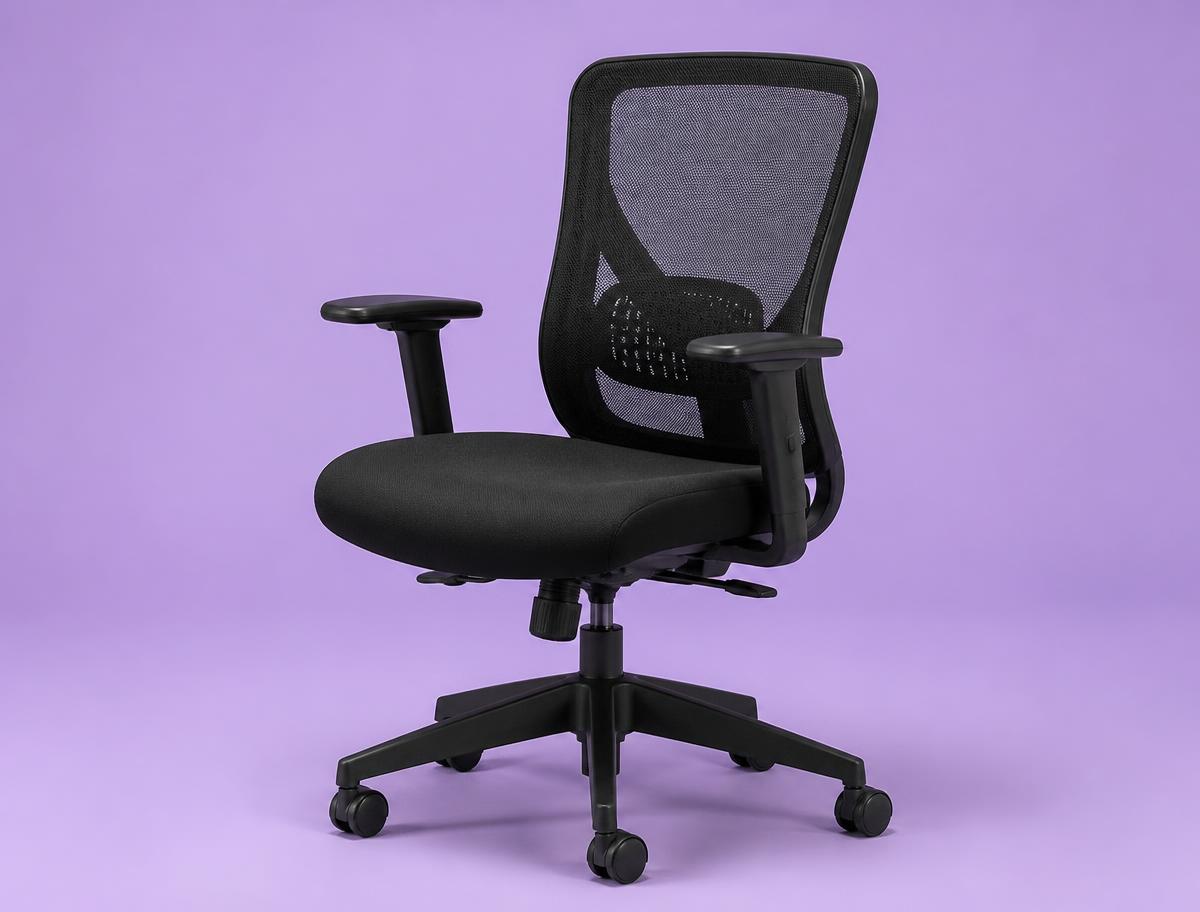
SIHOO M57 Ergonomic Chair
The first real chair after a dining chair or a gaming chair.
This is where the meaningful floor is. The lumbar pad moves up and down and in and out, the armrests adjust in three directions, and the mesh back does not turn into a hotplate by the afternoon. It is rated to 330 pounds, the recline locks in a few positions rather than infinitely, and the seat foam is firmer than most people expect on day one. It breaks in inside two weeks and it holds up.
Best overall
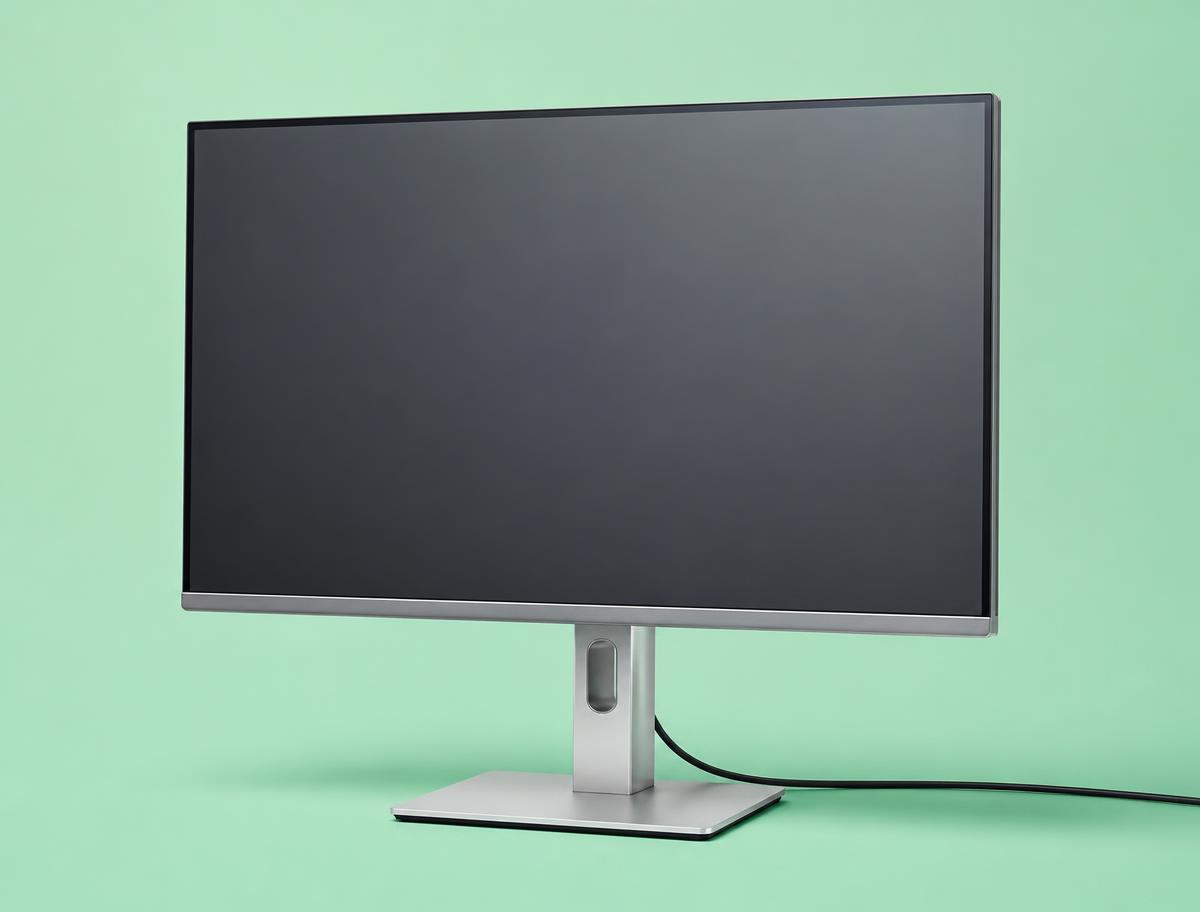
Dell S2722DC
One-screen setups where the laptop closes and lives on a stand.
A 27-inch 1440p panel with USB-C power delivery, which means a single cable to the laptop for video, data and charging. At this size 1440p is the sweet spot: two full documents side by side, text crisp at 100% scaling, and no display scaling to fight with on a work laptop. Height adjustment is built in, which quietly saves the cost of an arm.
Instead of a sit-stand desk
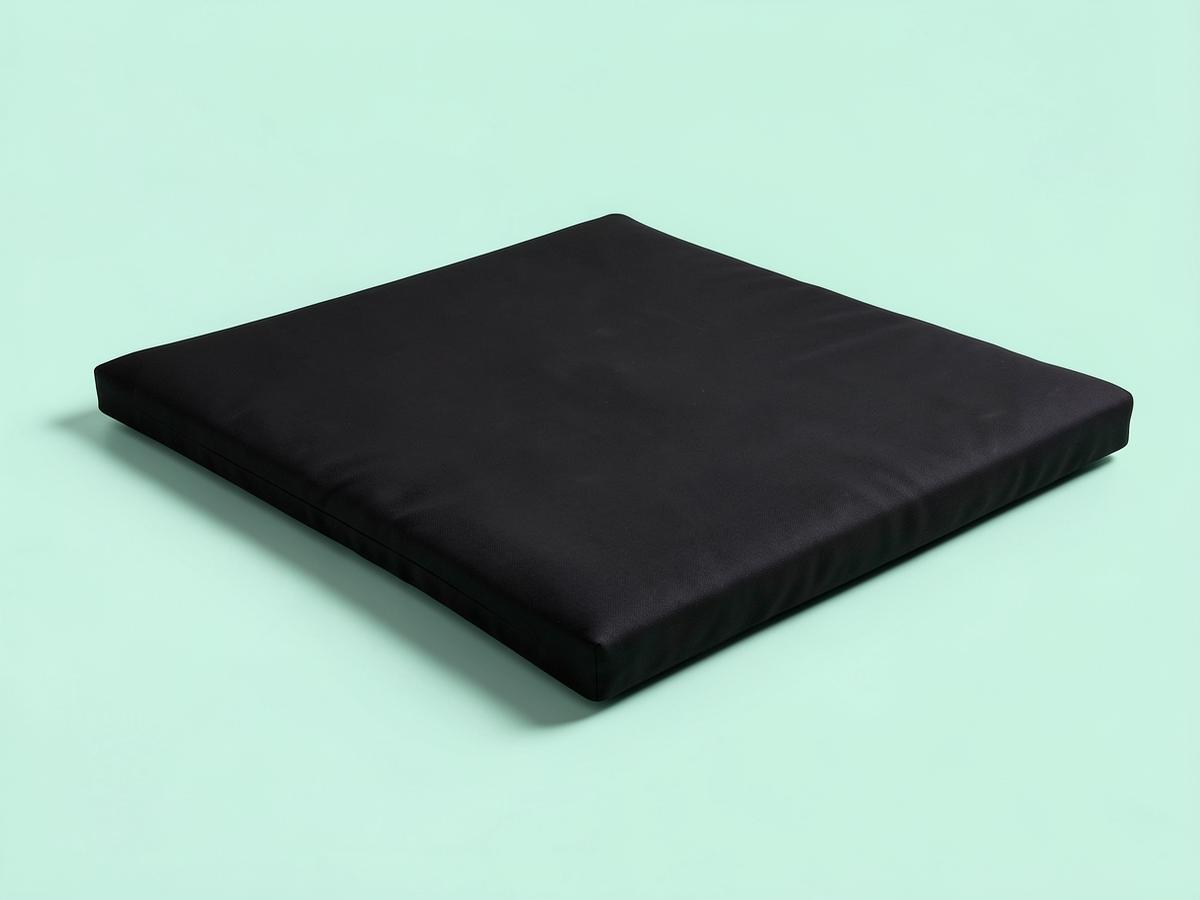
ComfiLife Anti Fatigue Floor Mat
Anyone who stands to work and quits after an hour because their feet hurt
The reason most people abandon standing is not their back, it is their feet, and a three-quarter-inch cushioned mat fixes that for roughly the price of a takeaway for two. The foam here is dense enough that it does not flatten permanently after a month, which is where the very cheap mats fail, and the bevelled edges do not curl up and trip you. Stand on a hard floor for two hours and your heels ache; stand on this and you stop thinking about your feet, which is exactly the point. It also works in a kitchen, which is worth knowing if the standing experiment does not stick.
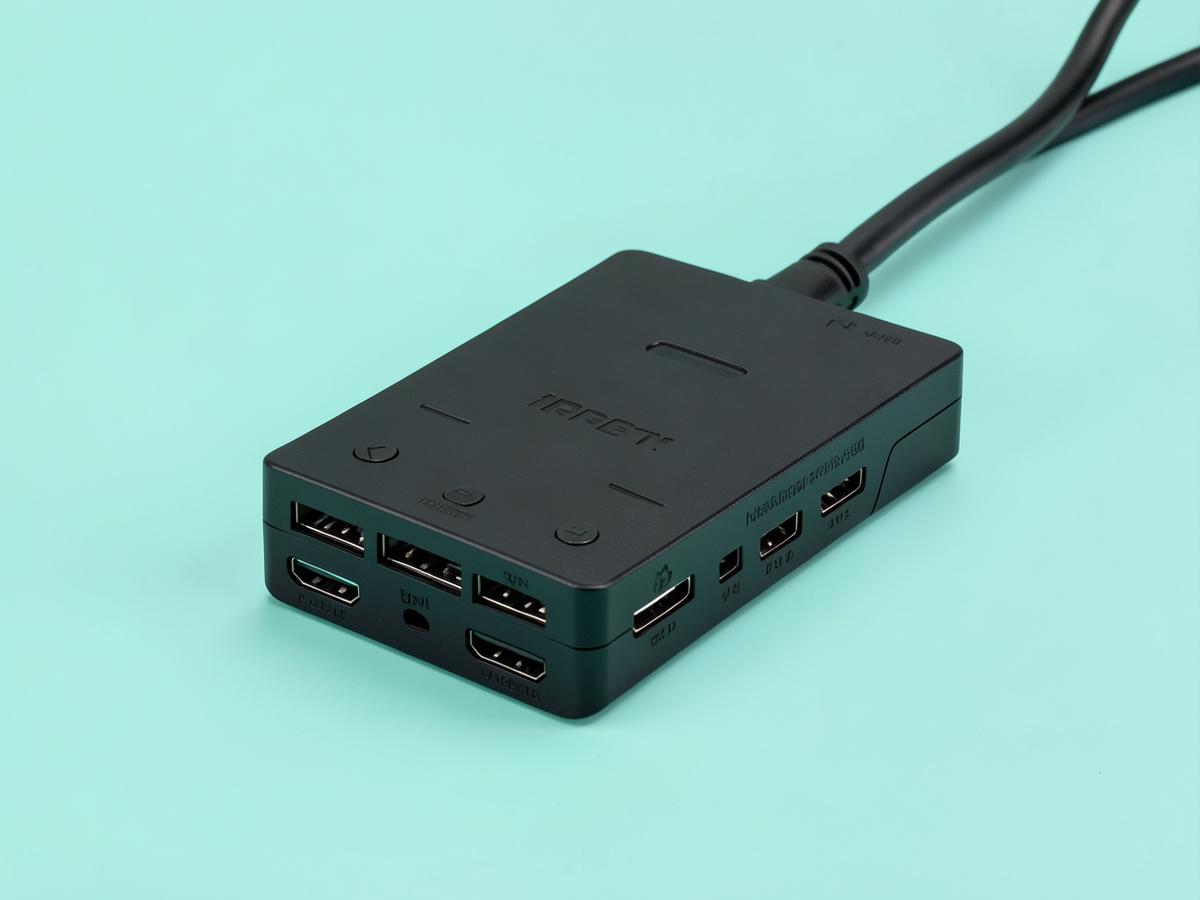
The one I use — best overall
Anker Laptop Docking Station Dual Monitor 8-in-1
Two external screens, one cable, and a morning routine you stop noticing.
Months in, the thing I notice about this dock is that I do not notice it. One USB-C cable goes into the laptop and two monitors, a keyboard, a mouse, a headset and the charger all come alive at once. It handles two screens over the twin HDMI outputs, passes power through to the laptop so there is no separate charger to fumble for, and includes ethernet — which matters more than people expect, because a wired connection during a long call is noticeably steadier than a flat's wireless. It runs warm after a full day, which is normal for the class, and the fixed cable is short enough that the dock has to sit near the laptop rather than tucked away behind the desk. Neither is a real complaint. What matters is that it has never dropped a screen mid-call, which is the failure mode that makes cheap docks worthless. If you work from a laptop with two monitors in front of you, this is the purchase that removes a small irritation from every single working day, and it costs less than a decent office chair cushion arrangement.
Your Chair: The Most Important Investment
Your office chair is the foundation of your entire workday. It is the single most important piece of ergonomic equipment you will own. Spending eight hours a day in the wrong chair can lead to back pain, poor posture, and overall discomfort that harms your focus.
Think of your chair as an investment in your health. A dining chair or a simple stool will not provide the support needed for a full-time job. The goal is to find a chair that is highly adjustable, allowing you to tailor it perfectly to your body.
A starter-level ergonomic chair will offer the most critical adjustments. Look for pneumatic height adjustment to get your feet flat on the floor. It should also have a backrest that can either tilt or be locked in place, along with basic armrests.
Moving to a mid-tier option unlocks a greater level of personalization. These chairs often feature adjustable lumbar support, which is a small cushion or curve in the lower back of the chair that can be moved up and down. They may also include armrests that adjust not only in height but also in width and pivot angle.
A full, top-tier ergonomic chair offers the most comprehensive suite of adjustments. You can expect everything from the mid-tier, plus features like seat depth adjustment, which slides the seat pan forward or backward to support your thighs properly. They often have more advanced tilt mechanisms that move with your body and may be constructed from breathable mesh materials that improve comfort over long periods.
When you are selecting a chair, look for these specific features. A solid chair is a tool that serves you for years.
- Adjustable Height: Your feet should rest flat on the floor with your knees at a 90-degree angle.
- Adequate Lumbar Support: The curve of the chair should fit the curve of your lower spine to prevent slouching.
- Adjustable Armrests: Your shoulders should be relaxed, with your elbows resting at a roughly 90-degree angle.
- Seat Pan Depth: You should have a few inches of space between the back of your knees and the edge of the seat.
- Swivel and Casters: A five-point base with wheels allows for easy movement without straining.
Choosing a Desk: Your Workspace Hub
Your desk is the surface where all your work happens. Its height and size are critical factors in your overall ergonomic equation. The main choice you will face is between a fixed-height desk and an adjustable-height, or standing, desk.
A fixed-height desk is a straightforward and budget-friendly option. The standard desk height is around 29 to 30 inches. If you choose this path, it is essential to ensure your adjustable chair can position you correctly relative to this fixed surface.
The main challenge with a fixed desk is that it may not be the ideal height for you. If your chair cannot adjust high enough, your wrists may be bent at an awkward angle to reach the keyboard. If the desk is too low, you may find yourself hunching over.
An adjustable-height desk, often called a sit-stand desk, offers the ultimate in flexibility. These desks can be moved up and down, allowing you to alternate between sitting and standing throughout the day. This movement is excellent for your body, as it reduces the risks associated with a sedentary workday.
Starter-level adjustable desks are often operated by a manual hand crank. They provide all the benefits of changing posture but require a little physical effort to change height. They are a great entry point into the world of active workspaces.
Mid-tier and full-setup adjustable desks typically feature electric motors. With the press of a button, you can move the desk to your preferred sitting or standing height. More advanced models even offer programmable memory settings, so you can save your perfect heights and switch between them effortlessly.
When choosing a desk, consider the surface area you need. Make sure it is large enough to hold your monitor, keyboard, and any other essential items without feeling cramped. The depth of the desk is also important, as it determines how far away you can place your monitor.
Positioning Your Monitor to Prevent Strain
Where you place your computer monitor has a direct impact on your neck and eye health. Staring at a poorly positioned screen for hours is a primary cause of "tech neck," headaches, and eye fatigue. The goal is to position your monitor so that you can view it with a neutral posture.
First, let's talk about height. The top edge of your screen should be at or slightly below your eye level. When you look at the center of the screen, your gaze should be angled slightly downward. This prevents you from craning your neck up or hunching down to see your work.
If you work on a laptop, you should not be looking down at its screen all day. A laptop stand is an essential starter accessory to elevate the screen to the proper height. You will then need an external keyboard and mouse to maintain proper wrist posture.
For those with an external monitor, you may be able to achieve the correct height with the stand it came with. If not, a simple and effective solution is a monitor stand or even a sturdy stack of books. This is a perfectly acceptable starter solution that costs very little.
For a more flexible and clean mid-tier or full setup, a monitor arm is an excellent investment. These arms clamp to the back of your desk and allow you to position your monitor with complete freedom. You can adjust the height, distance, and angle with a light touch, which is especially useful if you share your workspace or switch between sitting and standing.
Distance is the second key factor. Your monitor should be about an arm's length away from you. Sit back in your chair and extend your arm; your fingertips should just about touch the screen. If it is too close, you can strain your eyes. If it is too far, you may lean forward to read, defeating the purpose of your ergonomic chair.
Your Keyboard and Mouse: The Touch Points of Productivity
Your hands and wrists are in constant contact with your keyboard and mouse, making their design and position vital for preventing repetitive strain injuries. The ideal setup keeps your wrists in a neutral, straight position, not bent up, down, or to the sides.
As mentioned, if you use a laptop as your primary machine, an external keyboard and mouse are not optional. They are necessary. Typing on a laptop keyboard for eight hours a day forces your wrists into an unnatural position and encourages you to hunch over the screen.
A starter setup consists of a standard external keyboard and mouse. Even a basic model is a significant improvement over a laptop's built-in options. When typing, your elbows should be at a 90-degree angle, and your wrists should be flat, not resting on a sharp desk edge.
A simple gel or foam wrist rest can be a great addition to a starter setup. It provides a cushion for your wrists to rest on when you are not actively typing, preventing pressure on the delicate nerves in the area.
For a mid-tier setup, you might consider an ergonomic keyboard. These keyboards are designed to promote a more natural hand and wrist posture. Some are curved, while others are split into two halves, allowing you to position each half at a comfortable angle for your shoulders and wrists.
Similarly, an ergonomic mouse can make a big difference. Instead of the standard flat design, you might look for a vertical mouse. These are held in a "handshake" position, which keeps your forearm and wrist in a more neutral alignment.
A full ergonomic setup might involve a highly customizable split keyboard. These models allow you to adjust the "tenting" angle, which is the upward tilt toward the center, further reducing forearm pronation. Paired with a precision ergonomic mouse or a trackball, this creates a command center that is perfectly tailored to your body's mechanics.
Lighting Your Way to a Better Workday
Good lighting is an unsung hero of a productive home office. Poor lighting, whether it is too dim or too bright, can cause significant eye strain, headaches, and drowsiness. The goal is to create a layered and balanced lighting environment that minimizes glare and keeps you alert.
The best light source is natural light. If possible, position your desk near a window. However, you should place it so the window is to your side, not directly in front of or behind you. A window in front can be distracting, while a window behind you will create a bright glare on your screen.
Of course, natural light is not always sufficient or available. That is where artificial lighting comes in. You need both ambient and task lighting. Ambient light is the overall light that fills the room, such as an overhead ceiling fixture. It should provide a comfortable level of brightness throughout the space.
Your starter lighting setup should focus on adding dedicated task lighting. A simple desk lamp is an effective way to illuminate your immediate workspace, making it easier to read documents or see your keyboard. Position the lamp to the side, opposite your writing hand, to avoid casting shadows on your work.
When choosing a bulb, pay attention to its color temperature. A cool, bluish light can promote alertness, while a warm, yellowish light is more relaxing. A neutral, daylight-balanced bulb is often a good choice for a work environment.
A mid-tier lighting setup might involve a more advanced desk lamp with adjustable brightness and color temperature. This allows you to fine-tune the light to match the time of day or the task at hand. You could use a cooler light for focused morning work and a warmer light as you wind down in the afternoon.
For a full setup, consider a monitor light bar. This is a long, thin lamp that sits on top of your monitor and casts light down onto your desk without creating any glare on the screen itself. It is an elegant and effective solution that saves desk space while providing perfect, asymmetrical task lighting. This creates a comfortable and focused work environment.
The Right Audio: Headsets for Clarity and Concentration
In a remote role, communication and focus are paramount. A good headset is your connection to your team and your shield against distractions. Relying on your laptop's built-in microphone and speakers is often not sufficient for a professional environment.
Your computer's microphone can pick up a lot of background noise, from a dog barking to the hum of an appliance. Its speakers can create an echo for the other people on your call, as their voices are picked up by your microphone. A dedicated headset solves both of these problems.
A starter headset can be a simple wired model that plugs into your computer's audio jack or USB port. Look for one with an adjustable microphone that you can position close to your mouth. This ensures your voice comes through clearly. Even an inexpensive headset will provide a significant upgrade in call quality.
There are two main styles: on-ear and over-ear. On-ear models rest on your ears, while over-ear models fully enclose them. The choice is a matter of personal comfort. Over-ear designs tend to provide better passive noise isolation.
A mid-tier headset often introduces wireless connectivity. A wireless headset gives you the freedom to stand up and stretch during a long meeting without being tethered to your desk. They typically connect via a small USB dongle or a wireless protocol and offer reliable audio with good battery life.
Many mid-tier and full-setup headsets also feature active noise-cancellation (ANC). This technology uses microphones to detect ambient sounds and then creates an opposite sound wave to cancel them out. ANC is incredibly effective for blocking out low-frequency background noise, helping you concentrate in a busy household.
A full setup might include a premium wireless headset with both a noise-canceling microphone and active noise-cancellation for your ears. These models often have convenient features like a physical mute button or a "flip-to-mute" microphone. They may also offer multi-device pairing, allowing you to seamlessly switch between your computer and your phone.
Enhancing Comfort: Footrests and Mats
Once you have the core components of your ergonomic setup in place, you can add accessories that further enhance your comfort. A footrest and an anti-fatigue mat are two such items that address the lower half of your body.
A footrest is particularly useful if you are on the shorter side and cannot lower your chair enough to place your feet flat on the floor while maintaining a proper desk height. It bridges the gap, providing a stable surface to support your feet and maintain the 90-degree angle at your knees.
In a starter setup, a simple, static footrest will do the job. It can be a small, angled platform that sits under your desk. Even a small stool or a sturdy box can work in a pinch, as long as it is the right height.
For a mid-tier or full setup, you might consider an active footrest. These footrests are designed to encourage movement. They may have a curved surface that lets you rock your feet back and forth, or they might have rollers that you can use to massage the soles of your feet. This small amount of movement can improve circulation and reduce stiffness.
If you have an adjustable-height desk, an anti-fatigue mat is a crucial companion for your standing periods. Standing on a hard floor for extended lengths of time can be just as uncomfortable as sitting in a bad chair. It can lead to pain in your feet, legs, and lower back.
An anti-fatigue mat is a cushioned mat made of a material like high-density foam or gel. It provides a supportive surface that encourages subtle, constant movements in your leg muscles. These micro-movements promote blood flow and prevent the soreness that comes from standing still.
Starter mats are typically flat and provide a good baseline of cushioning. Mid-tier and full-setup mats may have more advanced features, such as contoured surfaces with ridges and mounds. These textures give your feet different surfaces to engage with, further encouraging movement and providing a more dynamic standing experience.
Action Plan: Building Your Ideal Desk Setup
You now have a comprehensive blueprint for creating a work from home desk setup that will support you through a full workday. The key is to be intentional and prioritize ergonomics. Here is a concrete action plan to get you started.
First, assess your current situation. Take a picture of your existing setup and compare it to the ergonomic principles we have discussed. Are your knees at 90 degrees? Is your monitor at eye level? Are your wrists straight? Identifying the biggest problem areas will tell you where to invest first.
Second, prioritize your purchases based on your needs and budget. The single most impactful item is your chair. If you can only upgrade one thing, make it a truly adjustable, ergonomic chair. This is the foundation upon which everything else is built. After the chair, focus on getting your screen to the right height and acquiring an external keyboard and mouse.
Here is a checklist to guide your build-out, from essential to enhancement.
- Priority 1: The Core. An adjustable ergonomic chair, an external keyboard, an external mouse, and a way to get your monitor to eye level (a stand, books, or a monitor arm).
- Priority 2: The Workspace. A desk of the proper size, considering an adjustable-height model if your budget allows.
- Priority 3: The Environment. Good task lighting to reduce eye strain and a quality headset for clear communication and focus.
- Priority 4: The Comforts. A footrest for proper leg posture and an anti-fatigue mat if you plan to stand.
- Priority 5: The Polish. An organized system for your cables, using sleeves, ties, or clips to create a tidy and distraction-free space.
Third, build your setup incrementally. You do not need to buy everything at once. Start with a solid, ergonomic foundation and add pieces over time. A great workspace is an evolution, a continuous process of refinement that adapts to you. By investing in your own comfort and health, you are setting yourself up for a long and successful remote career.
Pay figures are typical ranges, not guarantees. See today's live jobs.